SGD
Spatial Gesture Designer — binaural instrument for VST3, AU and Standalone.
SGD turns a sound file into a gesture: a sound that travels a path through a virtual room around the listener. You draw the path, decide how fast the sound moves along it, mix it, and bind it to a MIDI key. Pressing that key plays the sound and moves it — rendered binaurally, for headphones.
Concepts
Three ideas carry the whole plugin. Everything in the interface is one of them, or a view of one.
Rooms, gestures, keys
A room is the space the listener stands in the middle of. It has a name, a size in metres, and wall acoustics. A room also owns everything inside it: its gestures and their sound files. Only one room is open at a time, and rooms are independent — switching rooms swaps out the entire contents of the plugin.
A gesture is a sound plus its motion. It holds:
- a sound file, optionally trimmed to a shorter excerpt with fades;
- a trajectory — a curved path through the room, drawn from above, with a height for every point on it;
- a motion curve — how playback time maps onto position along the path, so the source can accelerate, hesitate, stop or run backwards;
- a stereo width curve (stereo sounds only) — how far the left and right channels spread apart over time;
- a mixer strip — level, three-band EQ and reverb send;
- a key, a name and a colour.
A key is a MIDI note, 0–127. Each gesture sits on exactly one key, and no two gestures in a room may share one, so a room holds at most 128 gestures. The key is how a gesture is played, whether the note comes from the on-screen keyboard or from your DAW.
Why rendering happens
Spatialising a moving source properly is expensive, so SGD does it ahead of time. Whenever a gesture's sound, path, motion, width or render options change, that gesture is queued for an offline binaural render in a background thread. Playback then streams the finished stereo file, which costs almost nothing.
Two consequences follow, and they explain most of what you will see while working:
- A gesture is not immediately audible in its spatialised form after an edit. It shows Qd, then a spinner while rendering, then READY. Watch the Render panel for progress.
- The reverb tail is not pre-rendered. Each gesture's dry signal is sent to one shared room reverb through its Send knob, and that reverb follows the room's size and wall material live.
SGD's output is binaural — it renders what your two ears would hear. It is designed to be monitored on headphones. Over loudspeakers, the spatial impression largely collapses.
Installation & setup
Formats and hosts
SGD builds as three products from the same code:
| Format | Platform | Notes |
|---|---|---|
| VST3 | macOS, Windows | Instrument (synth), MIDI in, stereo out. |
| AU | macOS | Instrument. Component installed to the usual AU folder. |
| Standalone | macOS, Windows | Own application window; audio and MIDI devices are chosen in its own settings. |
SGD is an instrument, not an effect. It takes no audio input. Load it on an instrument track and send MIDI to it.
The output is stereo, and only a stereo output layout is accepted. SGD has no input bus.
If your session does not run at 48 kHz, SGD converts its final mix from 48 kHz to the host rate and reports the conversion latency to the host, so delay compensation keeps SGD in time with the rest of the session. At 48 kHz the conversion is bypassed and latency is zero.
First launch
SGD cannot do anything without a room, so whenever you open a new instance SGD saves one for you: a 6 × 3 × 5 m room with the Studio preset, named My First Room — or My First Room (2), (3) and so on once that name is taken. Nothing is asked of you — add a gesture and start drawing straight away. Rename it, resize it or change its walls whenever you like, from the room editor.
An instance restored from a saved session re-opens the room that session refers to instead. The one case where SGD does insist on a room is when you delete the last one you have: the room editor overlay then opens automatically and cannot be cancelled until you give it a name, a size, and press Save.
Interface tour
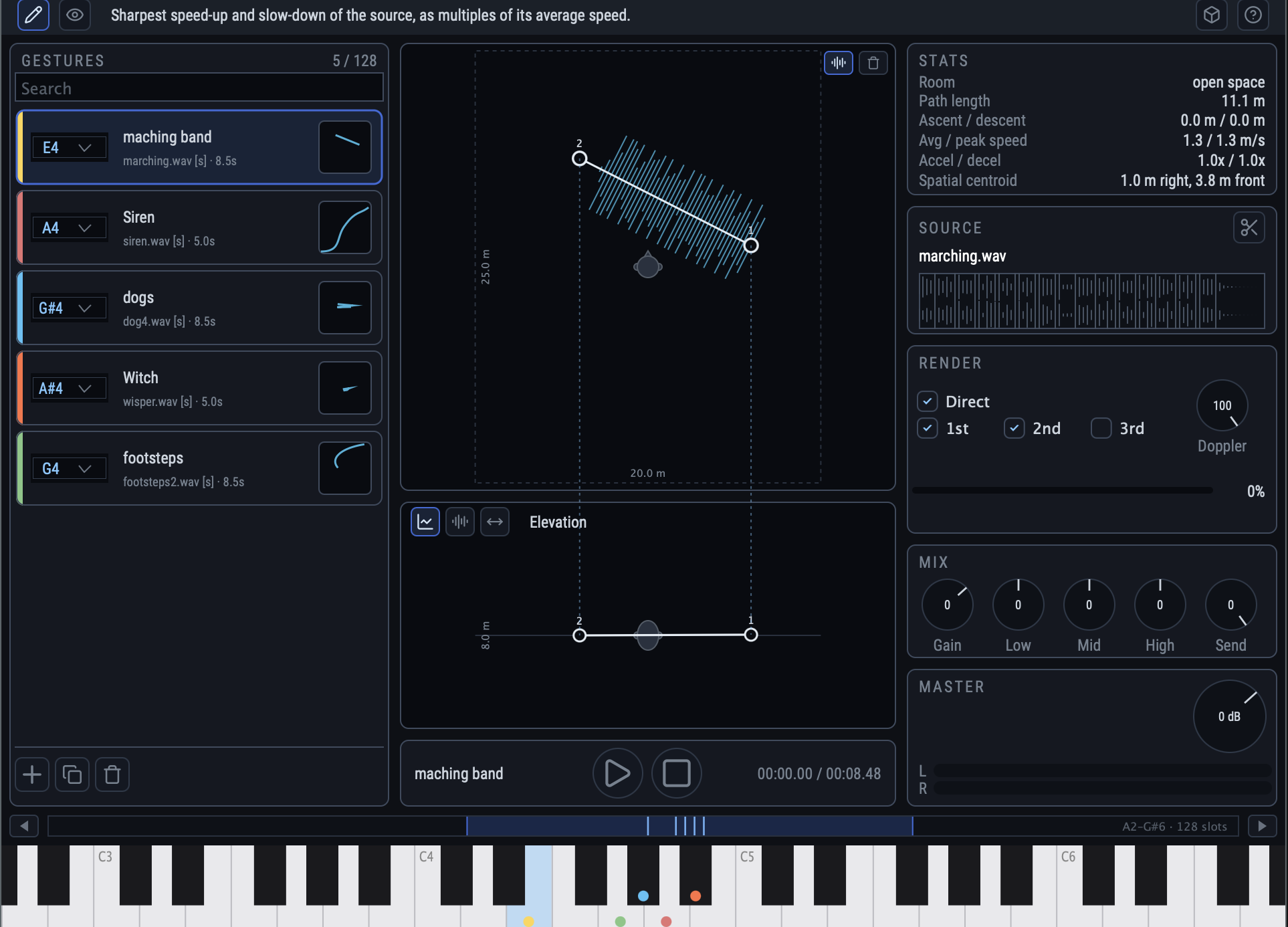
Header strip

The strip across the top holds, from left to right:
| Control | What it does |
|---|---|
| Edit button | Shows the edit view: build, mix and render the gestures of this room. |
| Eye button | Shows the observe view: watch the gestures move through the room in 3D. |
| Status line | Reads out the tooltip of whatever the mouse is over (see below). |
| Key button | Opens the license panel: activate SGD, or see how much of the trial is left. It appears only while there is something to do there. |
| Room button | Opens the room menu: new, open, edit, delete. |
| Help button | Opens this manual in your browser. Its tooltip reads out the version and build you are running — the number to quote to support. |
SGD plays only under a license or a running trial; the key button is where a license key is entered and where the trial's remaining days are read. Terms, prices and trial length are at radical-process.com/licensing.
Body
Below the header, exactly one body view is visible at a time:
- Edit view — three columns at 30 % / 40 % / 30 % of the width: the gesture panel, the editor for the selected gesture, and the inspector. If no gesture is selected, the middle and right columns are empty.
- Observe view — a single 3D scene of the room; see Observe view.
Two overlays can spread across the whole window and dim what is behind them: the room editor and the trim editor. While an overlay is open, nothing behind it can be clicked.
Keyboard & range strip

Along the bottom sits a piano keyboard showing four octaves at a time, with a thin range strip above it:
- Arrows at each end move the keys on show one octave down or up.
- The slot map in the middle represents all 128 keys. A tick marks a key a gesture sits on; the lit band shows which keys are currently on screen. Drag the band to move the window.
- The readout on the right names the range on show, e.g. C3–B6 · 128 slots.
Reading the status line
SGD does not use pop-up tooltips. Every control has a one-sentence description, and it is printed in the status line in the header when you hover the control. This keeps text from covering the 3D views, and gives long explanations room to be read. If you are unsure what something does, hover it and read the top of the window.
The status line is the fastest reference in the plugin. Almost every sentence in the tables of this manual is the same sentence you will find there.
Quick start
From a blank slate to a moving sound in eight steps.
- Take the room you were given. A new instance already comes with My First Room, so skip straight to the next step. For a room of your own, press the room button and choose New Room. Name it, pick a size preset (or set Width / Height / Depth by hand), pick a wall material, and press Save.
- Add a gesture. In the gesture panel, press +. A card appears with a free key already assigned and a colour that contrasts with its neighbours.
- Give it a sound. Press Load on the card and pick a mono or stereo .wav / .aiff file — or just drag the file onto the card.
- Select the gesture by clicking its card. The editor and inspector columns fill in.
- Draw the path. In the top view, click empty space to append a node. Repeat to build a path. Drag a node to move it, drag its handles to curve the segment.
- Shape it in 3D. Open the Elevation tab and drag nodes up or down to lift parts of the path off the floor.
- Wait for the render. The card shows Qd, then a spinner, then READY. The Render panel shows the progress.
- Play it. Click the tinted key on the on-screen keyboard, or send that MIDI note from your DAW. Listen on headphones.
From there: refine timing in the Motion tab, balance the gesture with the Mix knobs, and dial in the room's reverb tail with the Send knob and the room's wall material.
Rooms
Room menu
The room button in the header opens a menu with four entries:
| Entry | Effect |
|---|---|
| New Room | Opens the room editor empty, to create and save a new room. |
| Open Room | A submenu of every saved room. Choosing one closes the current room and loads it, with all its gestures and sounds. |
| Edit Room | Opens the room editor on the current room, so its name, size and acoustics can be changed. |
| Delete Room | Deletes a saved room and everything in it. You are asked to confirm first. |
Deleting a room deletes its folder on disk: its room.json, its imported sound files, and every rendered file. This cannot be undone from inside SGD.
Room editor
The room editor is an overlay that dims the rest of the window. On its left is a live 3D preview of the room seen from where the listener stands — drag to orbit, scroll to zoom. On its right, from top to bottom: the room name, the Dimension group, the Wall material group, and the Cancel / Save buttons.
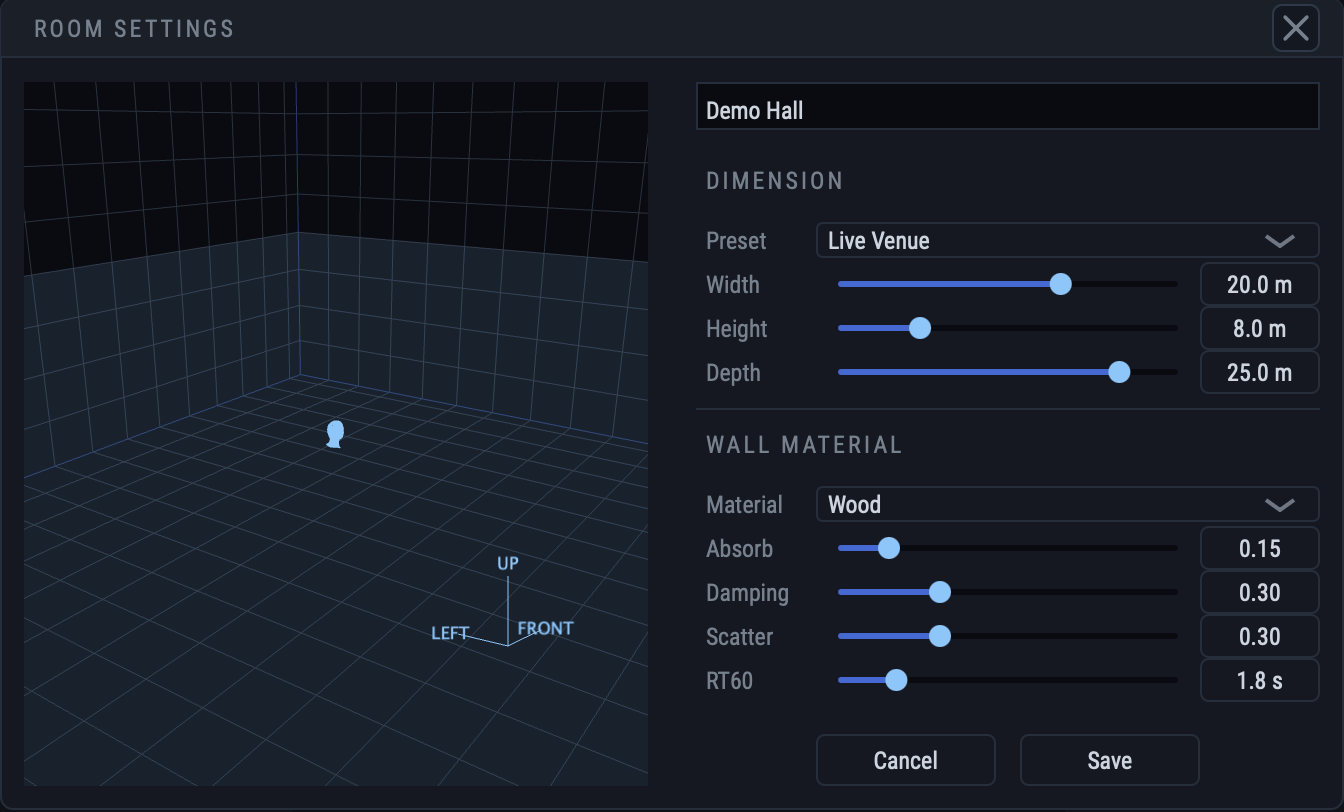
- Save stores the room under this name and size and opens it. It stays unavailable until the room has a name.
- Cancel (and the × in the corner) closes without saving. It is unavailable while no room exists at all — which is why the room demanded after you delete your last one is mandatory.
Dimension
Three sliders set the room's size in metres, each from 1 m to 30 m: Width (left to right), Height (floor to ceiling) and Depth (front to back). The listener always stands at the centre.
The Preset dropdown sets all three at once to a typical space — see the table in the reference. Moving any slider by hand deselects the preset, which then reads as Custom.
The room's size matters in three ways: it is the box the trajectory is drawn inside (a normalised path is stretched onto the real metres), it feeds the reverb, and it is what the Stats panel measures distances and speeds against.
Wall material
Four sliders describe the acoustics of the walls. The Material dropdown sets all four to a rough reference for a surface; tweaking any of them by hand deselects it.
| Control | Range | Default | Meaning |
|---|---|---|---|
| Absorb | 0 – 1 | 0.20 | How much sound the walls swallow per bounce. 0 is mirror-hard; 1 swallows everything. |
| Damping | 0 – 1 | 0.40 | How much faster the highs die away than the lows — soft rooms sound darker as they ring out. |
| Scatter | 0 – 1 | 0.50 | How rough the walls are. Rough surfaces diffuse the reverb; smooth ones keep it even. |
| RT60 | 0.1 – 10 s | 1.5 s | How long the tail rings: the time it takes to fall away by 60 dB. |
The room's dimensions and acoustics feed the shared reverb immediately — no re-render is needed to hear a change to Absorb, Damping, Scatter or RT60. The early reflections baked into each gesture's binaural render are a different matter: those come from the Render options and do require a re-render.
Gestures
The gesture panel
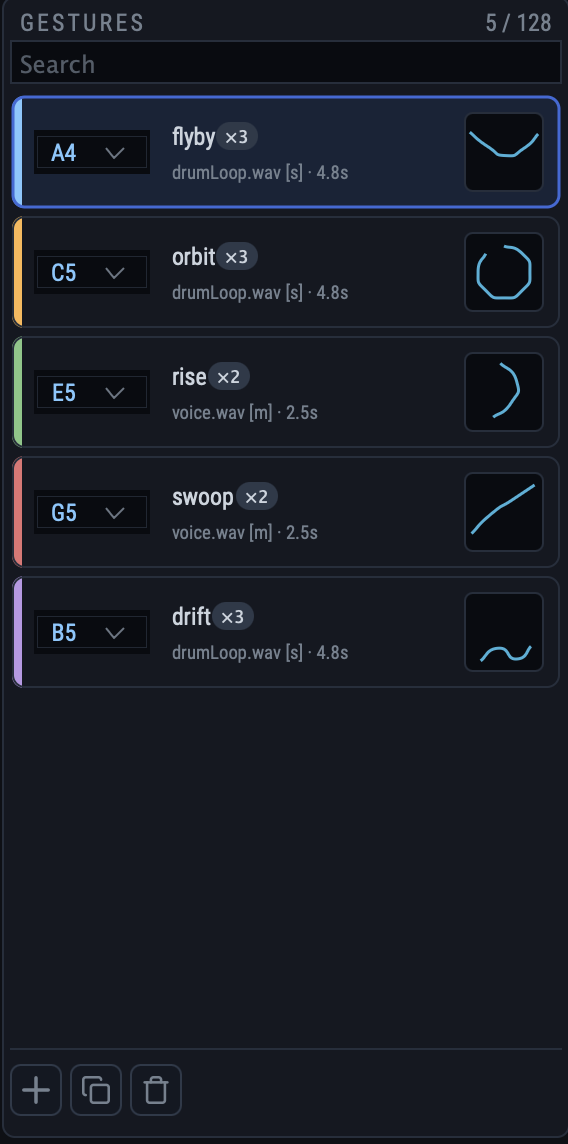
The left column lists every gesture in the room, one card per gesture. At the top:
- a search field — type to show only gestures whose name contains what you typed;
- a slot counter — how many of the 128 key slots this room's gestures take.
At the bottom, three buttons:
| Button | Effect |
|---|---|
| + | Adds an empty gesture to the room, on the first free key. |
| Duplicate | Copies the selected gesture — sound and path included — onto a free key. |
| Delete | Deletes the selected gesture. |
Clicking a card selects that gesture; the editor and inspector columns then show it.
Anatomy of a card

| Element | What it is |
|---|---|
| Colour stripe | Down the left edge. Click it to open a palette and recolour the gesture. The colour identifies the gesture in the trajectory views and the observe view, and tints its key on the keyboard. |
| Key chip | The key that triggers this gesture, as a note name. Open it to reassign; keys taken by another gesture are greyed out. |
| Name | Click to rename, up to 20 characters. |
| Subtitle | The sound file, whether it is mono [m] or stereo [s], and the length of the trimmed sound, e.g. bell.wav [s] · 2.4s. |
| Load / drag hint | Shown instead of the subtitle while the gesture has no sound. |
| Usage badge | A small ×2 pill next to the name, shown when more than one gesture shares the same imported sound file. |
| Status badge | Qd, a turning spinner while rendering, or READY. No badge means idle — nothing pending. |
| Thumbnail | The path this gesture travels, seen from above. |
Giving a gesture a sound
Two ways, and they behave identically:
- press Load on the card and pick a file;
- drag one file straight onto the card. The card lights up when the file is acceptable.
SGD accepts one mono or stereo .wav, .aiff or .aif file. Anything else — more than two channels, another format, several files at once — is refused, with a message saying why. Common source rates (44.1, 48 and 96 kHz) are handled; see Sample rates.
On import the file is copied into the room's own folder, so the gesture no longer depends on where the original lived. If two gestures import the same file, it is stored once and reference-counted — hence the ×2 usage badge.
Keys and slots
Keys run over the full MIDI range, C-1 (note 0) to G9 (note 127) — 128 slots. New gestures are assigned a free key starting from A4 (note 69) and working outwards, so the first gestures land under the middle of a keyboard.
No two gestures may share a key. When you open a card's key chip, the keys already taken are greyed out, so a clash cannot be created by accident.
The gesture editor
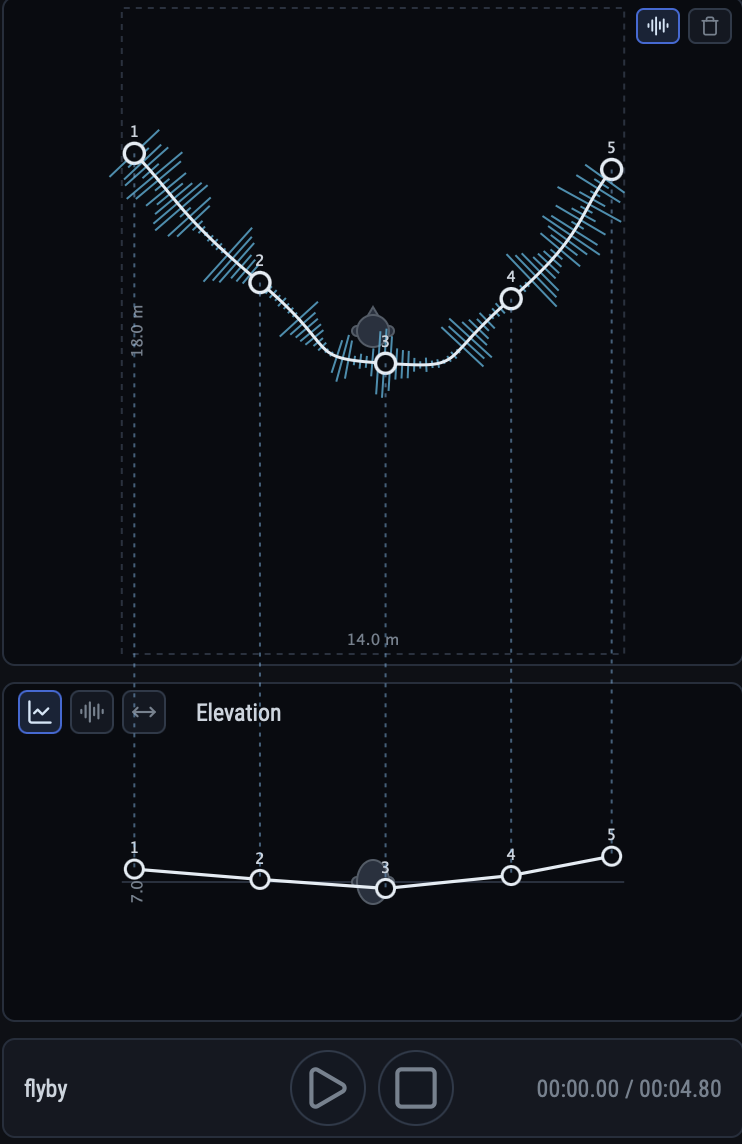
The middle column edits the selected gesture's motion through the room. It is one large top view, a tab area with three pages below it, and a transport strip at the bottom.
Top view (trajectory)
The path this gesture travels, seen from above, with the listener at the centre. The frame follows the room's footprint, so a wide, shallow room draws as a wide, shallow rectangle.
| Action | Result |
|---|---|
| Click empty space | Appends a node at that point, extending the path. |
| Drag a node | Moves it. |
| Drag a node's handle | Curves the segments meeting at that node. |
| Shift-click a node | Removes it. A gesture always keeps at least one node. |
| Clear button | Removes every node and starts the path again. |
| Waveform button | Shows or hides the sound's waveform drawn along the path — the loudness of the sound at each point in space. |
During playback a marker walks the path in the gesture's colour. For a stereo gesture, two smaller, fainter dots in the same colour ride beside it, one for each channel, as far apart as the stereo width curve spreads them; where the width is zero they merge into the marker. Editing is disabled while the gesture is playing.
Elevation tab
The same path seen from the side: how high above the floor each node sits. The horizontal axis lines up with the top view above it, and faint dotted guides connect each node to its counterpart there.
- Drag a node up or down to raise or lower the path at that point.
- Drag it sideways to slide it across the room.
- Shift-click a node to remove it.
- Nodes are added in the top view only.
The vertical range is the room's height, so a taller room gives the same drag more metres of travel. Between nodes the height rises in a straight line, while the ground-plane path curves.
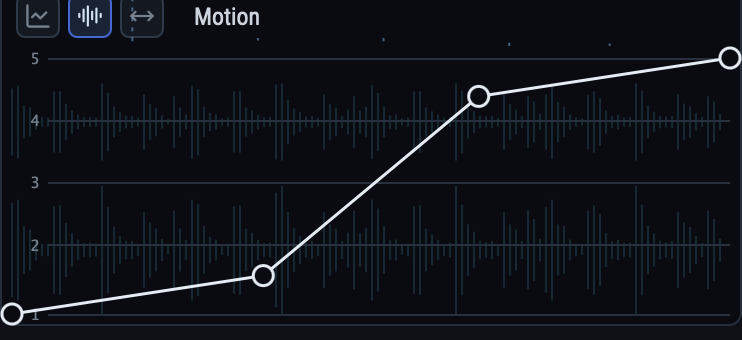
Motion tab
The motion curve maps playback time (left to right) onto position along the path (bottom to top). A straight diagonal from corner to corner — the default — sweeps the path once at constant speed.
| Action | Result |
|---|---|
| Click | Adds a node. |
| Drag | Moves a node. The endpoints stay pinned at the corners. |
| Shift-click | Removes an interior node. |
The slope of the curve is the speed:
- steep — the source races along the path;
- flat — it stands still while the sound continues;
- downward — it runs backwards along the path;
- a step up — it jumps.
The tab also draws the sound's waveform re-binned to position, and reference lines marking where the trajectory's nodes fall along the path, so you can time an arrival at a specific corner.
Speed here has an audible consequence: a fast-moving source bends in pitch. If the pitch sweep is too strong, either flatten the motion curve or turn down the Doppler knob in the Render panel.
Stereo width tab
Available for stereo gestures only; the tab button is disabled for a mono sound. The curve says how far the two channels stand apart over playback time: each channel is the centre source rotated around the listener by half the angle, to its own side.
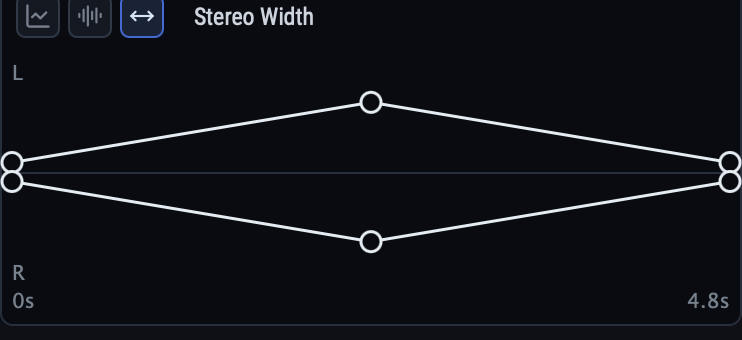
- 0° — both channels ride the path together, exactly as a mono gesture would.
- Up to 180° — the widest spread, each source a quarter turn from the centre.
- Dragging a node across the centre line makes the angle negative, which flips left and right.
Editing works as in the motion tab: click to add, drag to move, Shift-click to remove.
Transport
The strip at the bottom of the editor previews the selected gesture on its own:
| Element | What it does |
|---|---|
| Name | The gesture this transport plays. |
| Play / pause | Plays or pauses. Enabled once the gesture has a sound. |
| Stop | Stops playback and rewinds to the start. |
| Time | Playback position over the length of the trimmed sound. |
The inspector
The right column stacks five panels for the selected gesture and the room's output.
Stats
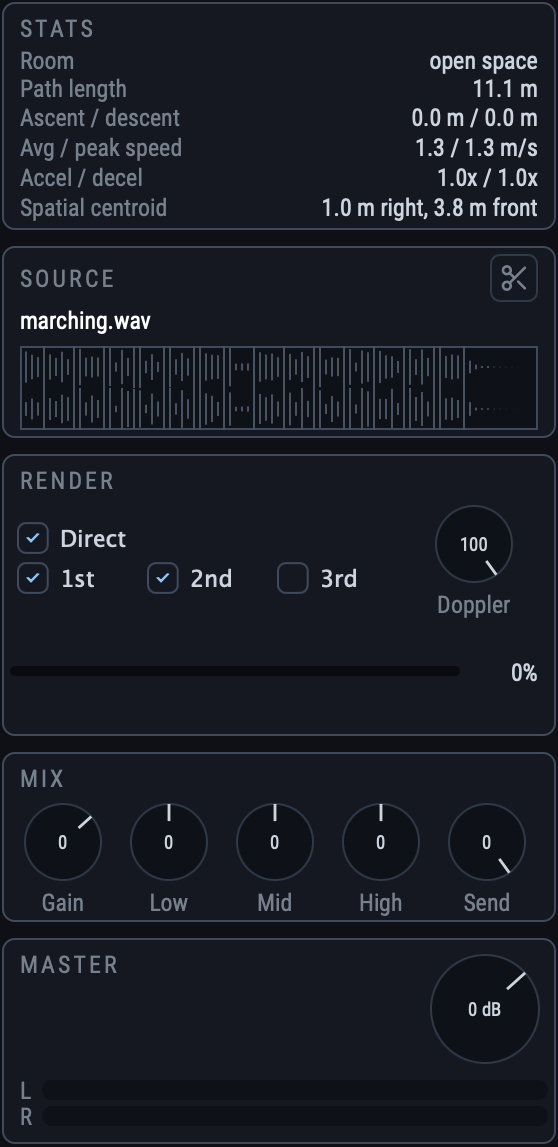
What the path adds up to, measured in the room's real metres around the listener. These update as you edit — they are a fast way to tell whether a gesture is a gentle drift or a violent flyby.
| Row | Meaning |
|---|---|
| Room | Name of the room these figures are measured in. |
| Path length | Length of the path across the floor, in metres. |
| Ascent / descent | How far the source climbs and how far it descends along the path, in metres. |
| Avg / peak speed | Average and peak speed of the source along the path, in metres per second. |
| Accel / decel | Sharpest speed-up and slow-down, as multiples of the average speed. |
| Spatial centroid | Where the source spends its time on average, measured from the listener at the centre. |
Source
The sound file this gesture plays: its name, the untrimmed waveform as it was imported, and a trim button in the corner that opens the trim editor. The trim button is unavailable until the gesture has a sound.
Render
Gestures are rendered to binaural audio in the background; this panel says what the render is made of and how far it has got.
What is mixed in
| Toggle | Default | Mixes in |
|---|---|---|
| Direct | on | The sound travelling straight from the source to the listener. |
| 1st | on | Reflections that bounced off one wall. |
| 2nd | on | Reflections that bounced off two walls. |
| 3rd | off | Reflections that bounced off three walls. |
Higher orders add realism and render time. Turning Direct off leaves only reflections, which is a way to push a source behind a wall or make it read as distant.
Doppler
A dial from 0 % to 100 % (default 100 %): how much of the pitch shift a moving source makes the render keeps. At 100 % the render is unrestricted; lower values hold the source's time-of-flight delay back so it bends less in pitch, down to a barely audible bend at 0. Double-click to return to the default.
Progress
Under the options: the gesture being rendered right now, a bar with the share of it that is done, and the gestures still waiting behind it.
Mix
Five dials for the selected gesture. Double-click any of them to return it to 0 dB.
| Knob | Range | Effect |
|---|---|---|
| Gain | −24 … +12 dB | Level of this gesture in the mix. |
| Low | −12 … +12 dB | Cut or boost the low band. |
| Mid | −12 … +12 dB | Cut or boost the mid band. |
| High | −12 … +12 dB | Cut or boost the high band. |
| Send | −96 … 0 dB | How much of this gesture is sent to the room reverb. |
Mix changes are heard immediately — they are applied during playback and never trigger a re-render.
Master
The room's output: what every gesture is mixed into.
- Gain — output level of the whole room, −24 dB to +12 dB. Double-click for 0 dB.
- L / R meters — peak level of each output channel.
Trimming a sound
The trim editor is an overlay opened from the trim button in the Source panel. It picks the part of the imported sound the gesture actually plays, and its fades.
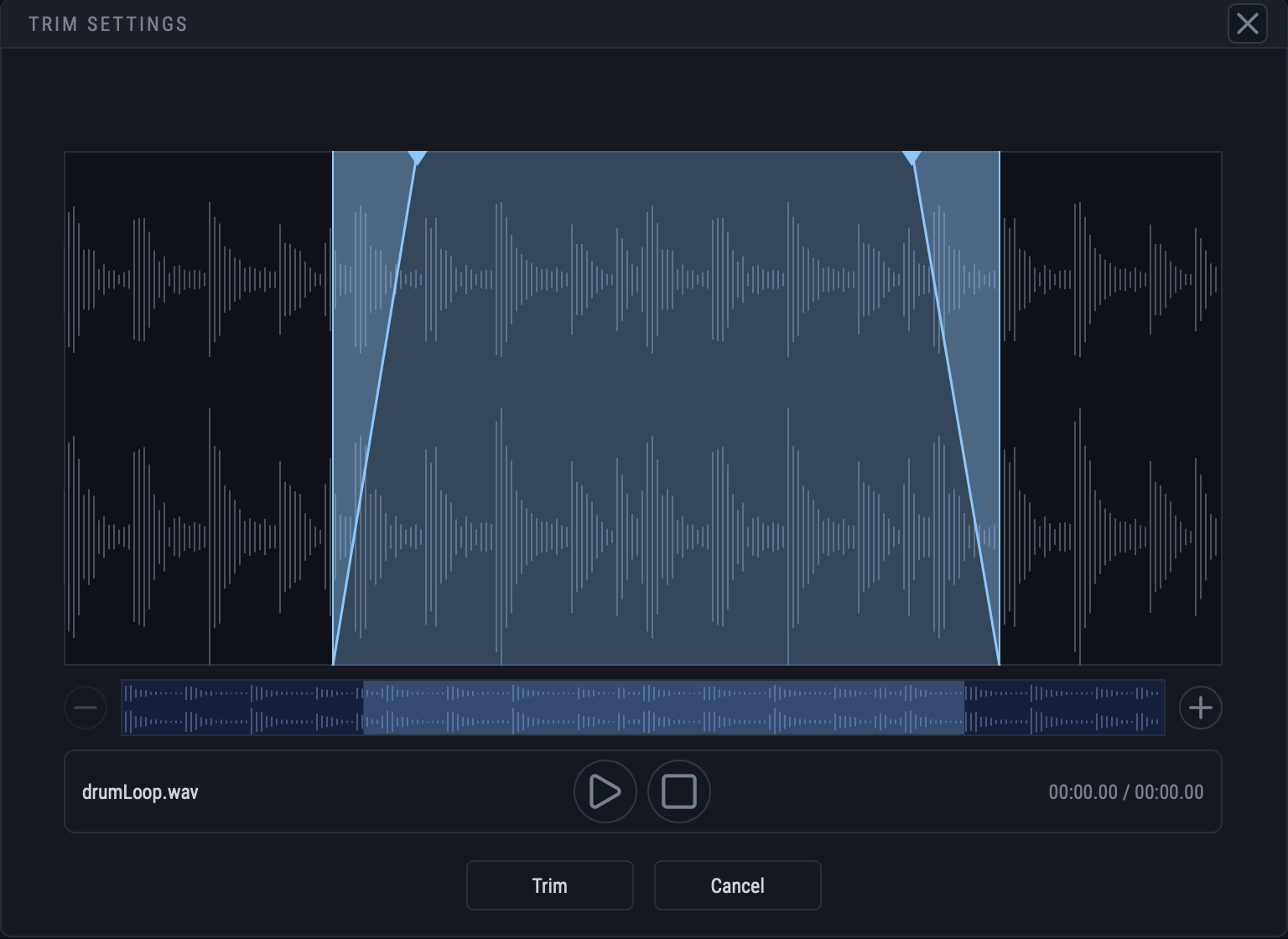
| Element | What it does |
|---|---|
| Waveform | Drag to pick the part of the sound to keep. Drag its edges to resize the selection, its middle to slide it along, and the triangles to set the fade in and fade out. |
| Navigator strip | The whole sound file, with the part you are keeping marked along the bottom. Drag the lit band to move what is shown above; drag its edges to zoom. |
| − / + buttons | Show more of the sound, or less of it in more detail. |
| Play / stop | Hear the selected part with its fades applied, before committing. |
| Trim | Replaces the gesture's sound with the selected part. The gesture is re-rendered. |
| Cancel / × | Closes without changing the sound. |
The imported file is never modified: SGD keeps the full import and writes the trimmed result alongside it. The Source panel always shows the untrimmed file, so you can come back and trim differently.
Observe view
The eye button in the header swaps the whole body for a 3D scene: the room seen from outside, with every sounding gesture drawn along its path in its own colour and a source marker walking it.
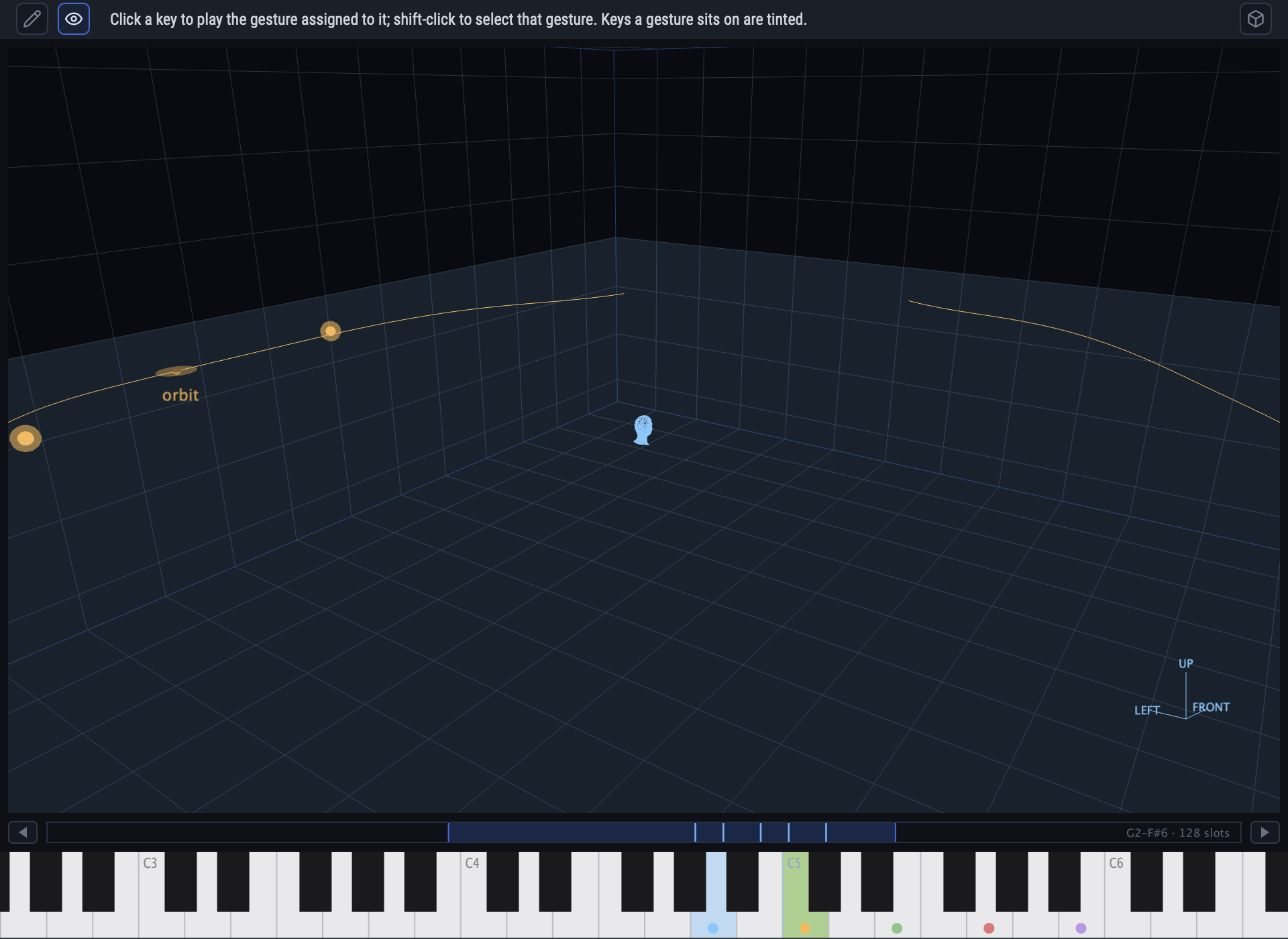
- Drag to orbit the camera around the room.
- Scroll to zoom in and out.
- An orientation gizmo in the corner shows which way the axes point.
- The box, its floor grid and the ear-level plane follow the room's real dimensions.
The observe view is a monitoring view, not an editing one: play keys (from the keyboard or your DAW) and watch. It is the quickest way to check that a gesture goes where you think it goes, and to see several gestures interact in the same space.
The 3D views draw on a native surface that sits above ordinary widgets. This is why SGD prints tooltips in the header status line, and why the room preview steps aside when a confirmation question appears over it.
Playing & MIDI
A gesture is triggered by its key. There are two sources of keys, and they behave the same:
The on-screen keyboard
- Click a key to play the gesture assigned to it, for as long as the mouse is held.
- Shift-click a key to select that gesture in the gesture panel — a fast way to jump to a gesture you can hear but cannot find in a long list.
- Keys a gesture sits on are tinted in that gesture's colour. The selected gesture's key carries a wash of the accent colour; a key currently sounding carries a brighter one.
MIDI from the host
SGD accepts MIDI note on and note off from the DAW. A note on starts the gesture on that key; a note off stops it. Notes are placed sample-accurately — a note that arrives in the middle of a buffer starts at exactly that frame, and host frame positions are converted to engine frames on the way in, so timing is correct at any host sample rate.
Incoming DAW notes light up the on-screen keyboard exactly as clicks do, so you can see what the sequencer is playing.
Velocity and pitch bend are not used: a gesture plays back at its own level, set by the Mix panel's Gain. Which note you send selects which gesture, not how loud or how high it is.
Audio, files & sessions
Sample rates
SGD's engine runs at a fixed 48 kHz — the rate the binaural (HRTF) data exists at. Two conversions bridge that to the outside world:
- On import. A file at 44.1 kHz or 96 kHz is converted once, at import, to 48 kHz and stored as 32-bit float WAV. Everything held in memory and on disk is therefore 48 kHz.
- On output. The finished mix is converted from 48 kHz to the host's rate at the very last stage. At 48 kHz this is bypassed bit-exactly. The conversion's latency is reported to the host for delay compensation.
The practical upshot: your session rate does not change how anything inside SGD sounds, and a project moved between a 44.1 kHz and a 96 kHz session behaves identically.
Where things are stored
Rooms live in SGD's own application data folder, not next to your DAW project:
A room folder is self-contained: it can be copied to another machine, and the room will open there with its sounds intact.
What the DAW saves
Your DAW session stores only the identifier of the room that was open. The room's own contents are saved into its room.json whenever the host asks the plugin for its state — that is, when you save the session — and whenever you press Save in the room editor.
A session file alone is not a backup. To archive a project, keep the matching room folder from the application data directory alongside it. Equally, two sessions that refer to the same room share it: a change made in one is visible in the other.
Reference
Parameter ranges
| Parameter | Where | Range | Default |
|---|---|---|---|
| Gain | Mix | −24 … +12 dB | 0 dB |
| Low / Mid / High | Mix | −12 … +12 dB | 0 dB |
| Send | Mix | −96 … 0 dB | 0 dB |
| Master gain | Master | −24 … +12 dB | 0 dB |
| Doppler | Render | 0 … 100 % | 100 % |
| Width / Height / Depth | Room | 1 … 30 m | 12 m |
| Absorb | Room | 0 … 1 | 0.20 |
| Damping | Room | 0 … 1 | 0.40 |
| Scatter | Room | 0 … 1 | 0.50 |
| RT60 | Room | 0.1 … 10 s | 1.5 s |
| Stereo width | Editor | −180 … +180° | 0° |
| Gesture key | Gesture card | 0 … 127 (C-1 … G9) | from A4 |
| Gesture name | Gesture card | ≤ 20 characters | — |
Room size presets
Thirteen presets set Width, Height and Depth to a typical space. Any manual change to a slider deselects the preset, which then reads Custom.
| Preset | Width | Height | Depth |
|---|---|---|---|
| Booth | 1.5 m | 2.2 m | 1.5 m |
| Car | 1.8 m | 1.2 m | 3.0 m |
| Bathroom | 2.0 m | 2.4 m | 2.5 m |
| Bedroom | 3.0 m | 2.4 m | 3.2 m |
| Small room | 3.5 m | 2.4 m | 4.0 m |
| Kitchen | 4.0 m | 2.5 m | 3.5 m |
| Studio | 6.0 m | 3.0 m | 5.0 m |
| Large room | 10.0 m | 3.5 m | 8.0 m |
| Corridor | 2.0 m | 2.6 m | 20.0 m |
| Live venue | 20.0 m | 8.0 m | 25.0 m |
| Church | 15.0 m | 12.0 m | 25.0 m |
| Cathedral | 25.0 m | 22.0 m | 30.0 m |
| Station | 30.0 m | 15.0 m | 28.0 m |
Wall materials
Seven presets set Absorb, Damping, Scatter and RT60 to a rough reference for a surface, ordered here from most reflective to most absorbent:
| Material | Absorb | Damping | Scatter | RT60 |
|---|---|---|---|---|
| Glass | 0.05 | 0.05 | 0.05 | 3.0 s |
| Brick | 0.04 | 0.15 | 0.40 | 3.5 s |
| Concrete | 0.05 | 0.10 | 0.10 | 4.0 s |
| Wood | 0.15 | 0.30 | 0.30 | 1.8 s |
| Carpet | 0.40 | 0.70 | 0.20 | 0.8 s |
| Curtain | 0.50 | 0.80 | 0.30 | 0.6 s |
| Acoustic foam | 0.85 | 0.90 | 0.25 | 0.3 s |
Concrete rings longest and scatters least; brick is the same hardness with rougher walls, so it diffuses more. Wood is the middle ground. Carpet, curtain and foam swallow progressively more and take the highs first, so the tail shortens and darkens together.
Mouse & keyboard
| Where | Action | Result |
|---|---|---|
| Top view | Click empty space | Append a trajectory node |
| Top view | Drag node / handle | Move the node / curve the segment |
| Top view | Shift-click node | Remove the node |
| Elevation | Drag node up / down | Raise or lower the path there |
| Elevation | Drag node sideways | Slide the node across the room |
| Elevation | Shift-click node | Remove the node |
| Motion / Width | Click | Add a node |
| Motion / Width | Drag | Move a node |
| Motion / Width | Shift-click | Remove an interior node |
| Any knob | Double-click | Return to its default value |
| Gesture card | Click | Select the gesture |
| Gesture card | Click the colour stripe | Open the colour palette |
| Gesture card | Click the name | Rename the gesture |
| Gesture card | Drop a file | Import it as this gesture's sound |
| Keyboard | Click a key | Play the gesture on that key |
| Keyboard | Shift-click a key | Select that gesture |
| 3D views | Drag | Orbit the camera |
| 3D views | Scroll | Zoom in / out |
| Trim waveform | Drag | Select the part to keep |
| Trim waveform | Drag the triangles | Set fade in / fade out |
| Anywhere | Hover | Read the description in the header status line |
Troubleshooting
The plugin opened with a room dialog I cannot close
That is by design: SGD needs a room before it can do anything, and no room exists yet. Name it, press Save, and Cancel becomes available from then on.
I pressed a key and heard nothing
Check, in order: the gesture has a sound (the card shows a file name, not a Load button); the card is not still showing Qd or a spinner; its Mix Gain is not at the bottom of its range; the Master gain is up and the meters move. Also confirm you are sending the note the card's key chip names.
My edit did not change what I hear
Edits to the path, motion, width, trim or render options need a re-render. Watch the status badge on the card and the Render panel; when it reads READY, play again. Mix, master and the room's acoustics, by contrast, are heard immediately.
The spatial effect is weak or confusing
Listen on headphones — the render is binaural. Then check the Direct toggle is on, that the path actually moves away from the centre (see Path length in Stats), and that the room is big enough for the movement to mean anything.
A moving sound warbles or sweeps in pitch
That is the Doppler shift of a fast source. Flatten the motion curve, lengthen the path, or turn the Render panel's Doppler knob down.
My file was refused
SGD accepts a single mono or stereo .wav / .aiff file. Multi-channel files, other formats, and multi-file drops are rejected.
Rendering is slow
Render time grows with the length of the sound and with each reflection order enabled. Turn 3rd off while designing, and switch it on for the final pass.
I opened an old session and the room is empty or missing
The session stores only the room's identifier; the room itself lives in the application data folder. If that folder was cleared, or the session was opened on another machine, copy the room folder across (see Where things are stored).
SGD is slightly late against the rest of the session
SGD reports its output-conversion latency to the host. Make sure delay compensation is enabled in your DAW. Running the session at 48 kHz removes the conversion — and the latency — entirely.
Glossary
| Term | Meaning |
|---|---|
| Binaural | Rendered for two ears over headphones, using head-related transfer functions, so sounds appear at real positions around the listener. |
| Dry | The trimmed sound without spatialisation. It is what feeds the reverb send. |
| Early reflections | The first few bounces off the walls, rendered per gesture and selected by the Render panel's order toggles. |
| Gesture | A sound plus the path it travels, its timing, its mix and its key. |
| Key / slot | The MIDI note a gesture is bound to. 128 exist per room; no two gestures share one. |
| Motion curve | The map from playback time to position along the path. |
| Room | The space, its acoustics, and everything inside it. One is open at a time. |
| RT60 | The time the reverb tail takes to fall by 60 dB. |
| Trajectory | The curved path through the room, with a height at every node. |
| Trim | The excerpt of the imported file the gesture plays, with fades. |
Acknowledgements
SGD's binaural rendering is built on measured hearing, not a synthetic model. The head-related impulse responses it convolves every gesture with come from a published research dataset:
The SADIE II Binaural Measurement Database, AudioLab, Department of Electronic Engineering, University of York — the KU100 head-and-torso simulator set, at 48 kHz. It is used here under the Apache License, Version 2.0, and is compiled into the plugin; there is nothing to download or install separately. The project is at york.ac.uk/sadie-project.
If you publish work made with SGD, please cite the database as its authors ask:
C. Armstrong, L. Thresh, D. Murphy and G. Kearney, “A Perceptual Evaluation of Individual and Non-Individual HRTFs: A Case Study of the SADIE II Database”, Applied Sciences, vol. 8, no. 11, 2018.
The KU100 is a dummy head: its ears are not yours. That is why the sense of elevation and of front-versus-back varies from listener to listener, and why the manual keeps recommending you judge a gesture on headphones rather than on paper. It is also why SGD's engine is fixed at 48 kHz — see Sample rates — since that is the rate the measurements exist at.
SGD User Manual · RadicalProcess.
Behaviour described here matches the shipped build; hover any control to read its own description in the
header status line.